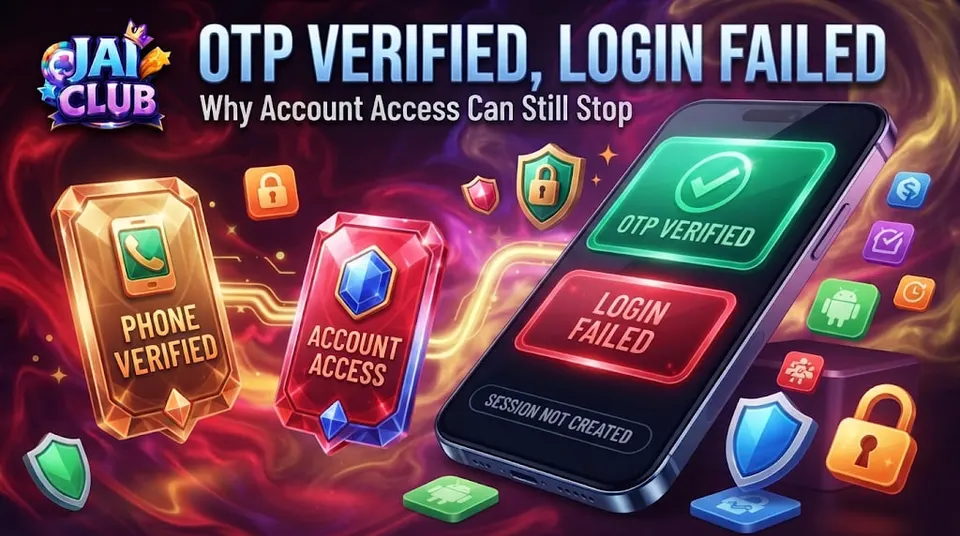
CAPTCHA Loop on Jai Club Login: Why Verification Keeps Repeating
Understand why a CAPTCHA verification may repeatedly appear during Jai Club login, how browser storage, network changes and session handling can affect the process, and how to recognise suspicious verification pages.
In this article
- What Is a CAPTCHA?
- What Is a CAPTCHA Loop?
- CAPTCHA Verification vs Login Authentication
- Why Browser Cookies May Matter
- Browser Privacy Settings
- EXAMPLE: CAPTCHA Completed but Page Reloads
- CAPTCHA Loop vs Incorrect Password
- Common CAPTCHA Symptoms
- Network Changes During Verification
- VPNs and Shared Network Addresses
- JavaScript and CAPTCHA Components
- Why an Embedded App Browser May Behave Differently
- Clearing Cache vs Clearing Site Data
- Why Repeated Refreshing May Not Help
- Device Time and Verification
- CAPTCHA Does Not Verify Website Authenticity
- Fake CAPTCHA and Dangerous Instructions
- CAPTCHA Loop After OTP Verification
- What to Include in a CAPTCHA Error Report
- What Not to Assume From a CAPTCHA Loop
- Frequently Asked Questions
- Why does the CAPTCHA keep repeating?
- Does a successful CAPTCHA mean I am logged in?
- Can browser cookies affect CAPTCHA verification?
- Can an Android embedded browser cause compatibility problems?
- Does a CAPTCHA loop mean the account is blocked?
- Should I disable security protections to fix CAPTCHA?
- Can a fake website display a CAPTCHA?
- Is clearing all browser data the same as clearing cache?
- Why can CAPTCHA repeat after OTP verification?
- Does this article confirm an active Jai Club CAPTCHA problem?
- A Repeating Challenge Needs the Right Diagnosis
A CAPTCHA is intended to help websites distinguish ordinary human activity from automated requests. It may ask users to select images, complete a checkbox or perform another verification step before continuing.
However, a CAPTCHA can sometimes repeat even after the user believes the challenge has been completed.
The page may refresh, return to the same verification screen or display another challenge without opening the expected login form.
This is commonly described as a CAPTCHA loop.
Quick answer: A repeating CAPTCHA can occur when the verification result is not retained, the browser cannot maintain the relevant session or the website continues rejecting the request. Cookies, browser restrictions, network changes and service-side problems are possible causes. The exact cause depends on the implementation.
This article explains the technical reasons and safe troubleshooting concepts without claiming a confirmed CAPTCHA defect in any particular Jai Club login service.
What Is a CAPTCHA?
CAPTCHA is a term used for challenge-response systems designed to distinguish human users from automated activity.
Different websites use different verification methods.
Some ask users to identify objects in images.
Others use checkboxes, background signals or additional verification steps.
The purpose is generally to protect online services from certain forms of automated abuse.
However, CAPTCHA does not by itself establish that a website is trustworthy.
A fraudulent website can also display a convincing human-verification challenge.
What Is a CAPTCHA Loop?
A CAPTCHA loop occurs when the verification process repeatedly returns to a new or previously completed challenge without allowing the expected next step.
For example, a user might complete an image-selection challenge and see a success message.
Instead of continuing to the login form, the page reloads the CAPTCHA.
The user repeats the process and encounters the same problem.
This behaviour can result from several causes.
The visible repetition alone does not establish which technical component failed.
CAPTCHA Verification vs Login Authentication
A CAPTCHA and a login process perform different functions.
The CAPTCHA generally attempts to evaluate whether a request should proceed.
Login authentication determines whether the user has supplied the required account credentials.
A user might complete a CAPTCHA successfully but still fail to sign in because the account authentication step did not complete.
Similarly, a login form may be correct while the CAPTCHA prevents it from being submitted.
These stages should be investigated separately.
For general sign-in concepts, read the Jai Club Login Guide.
Why Browser Cookies May Matter
Websites often use cookies or related browser storage to maintain session information.
A verification process may need to associate a completed challenge with the browser session that requested it.
If that information is unavailable or rejected, the service may not recognise the completed verification.
This is one possible reason a CAPTCHA could repeat.
However, not every CAPTCHA system relies on identical cookie behaviour.
The exact mechanism depends on the provider and website configuration.
Readers should avoid treating cookie restrictions as the confirmed cause without further evidence.
Browser Privacy Settings
Modern browsers include controls intended to limit tracking and protect privacy.
These settings can affect certain kinds of embedded content and cross-site communication.
Some verification systems depend on resources loaded from a separate domain.
Under particular configurations, those resources may fail to work correctly.
However, this does not mean users should disable all browser privacy protections.
A troubleshooting process should focus on the legitimate source and the specific failure rather than weakening security broadly.
If a login page requires unsafe changes to proceed, its authenticity and design deserve closer examination.
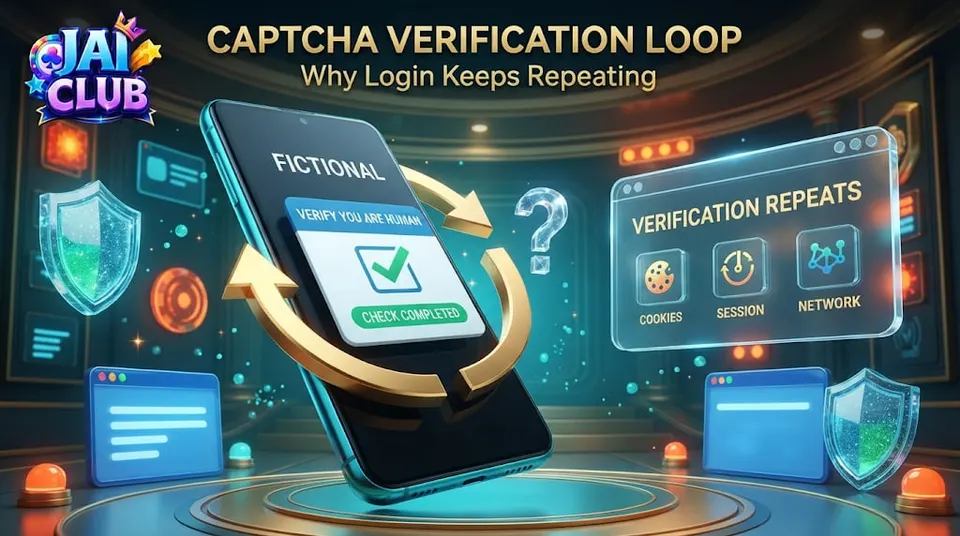
EXAMPLE: CAPTCHA Completed but Page Reloads
Consider a fictional login website.
A user opens the page and completes a CAPTCHA challenge.
The browser displays a success checkmark.
However, when the page submits the verification response, the associated session information is not accepted.
The website then displays another CAPTCHA.
This produces a loop.
The example demonstrates how a challenge can appear successful locally without producing the expected next step.
It is not a diagnosis of the actual Jai Club login system.
CAPTCHA Loop vs Incorrect Password
An incorrect password and a CAPTCHA loop are different symptoms.
An incorrect password means the account-credential check did not succeed.
A CAPTCHA loop may prevent the user from reaching or completing that credential check.
If the page repeats verification before showing the login form, the password may not yet have been evaluated.
Therefore, repeatedly changing the password may not address the problem.
The correct diagnosis begins with identifying the stage where the process stops.
Common CAPTCHA Symptoms
| Symptom | Possible explanation | Important distinction |
|---|---|---|
| Challenge repeats immediately | Session or verification issue | Not necessarily a password error |
| Images do not load | Resource or network problem | Challenge may be incomplete |
| Checkbox never completes | Script or communication issue | Response not established |
| Verification succeeds, then reloads | Result not retained or accepted | Later step failed |
| Different challenge on each attempt | Retry or security policy | Not proof of account restriction |
These are general examples.
A single symptom can have several technical causes.
The actual website and verification service determine the correct explanation.
Network Changes During Verification
A phone may switch between Wi-Fi and mobile data while a CAPTCHA is being completed.
Some security systems consider network-related information when evaluating requests.
A change during the process could affect the verification flow in certain implementations.
However, the effect varies.
A network switch does not universally invalidate a CAPTCHA.
It is simply one technical condition worth considering when the problem occurs during a connection transition.
The user should not assume that every failed challenge is caused by the mobile network.
VPNs and Shared Network Addresses
Some users access websites through VPNs or networks where many devices share an external IP address.
Security systems may apply additional checks when traffic appears unusual or automated.
However, an additional CAPTCHA does not prove that the user's device is compromised.
Nor does it establish that the website has blocked the account.
The challenge may relate to the request environment rather than the login credentials.
The precise reason for a security challenge is usually determined by the relevant verification system.
JavaScript and CAPTCHA Components
Many modern CAPTCHA systems rely on JavaScript to display challenges and communicate verification responses.
If required scripts fail to load, the challenge may remain incomplete.
This could occur because of browser compatibility problems, restrictive extensions or network errors.
However, users should not automatically enable every blocked script on an unknown website.
The identity of the login page should be established first.
A technically functioning CAPTCHA does not make a suspicious website safe.
Why an Embedded App Browser May Behave Differently
Some Android applications display web pages through embedded browser components.
These environments can differ from a full mobile browser in storage, compatibility and supported features.
A CAPTCHA that works in a regular browser might behave differently inside an embedded environment.
That does not prove the account itself has a problem.
However, the source application must still be verified.
A user should not install another unknown APK merely to obtain a different CAPTCHA interface.
For Android package-verification information, see Jai Club APK File Verification.
Clearing Cache vs Clearing Site Data
Browser cache typically stores temporary resources such as images and other downloaded content.
Site data can include cookies and information associated with the website.
Clearing these are different actions.
Removing temporary cache may force a page to retrieve fresh resources.
Clearing site data can also remove authenticated session information and local preferences.
Therefore, clearing all browser information is a more disruptive action than clearing temporary cached resources.
Users should understand the impact before deleting stored data.
Why Repeated Refreshing May Not Help
Refreshing a page causes the browser to request the content again.
If the underlying problem concerns session handling or blocked verification resources, repeated refreshing may reproduce the same failure.
In some systems, repeated requests can also lead to additional security challenges.
Therefore, the fact that a page refreshes successfully does not prove the verification process is functioning correctly.
It may be more useful to identify whether the challenge resources load, whether the completion response is accepted and whether the expected next page is reached.
Device Time and Verification
Some authentication and verification mechanisms depend on time-limited responses.
A device with a significantly incorrect clock may encounter compatibility problems in certain security processes.
However, a CAPTCHA loop does not automatically indicate an incorrect device clock.
The relevance depends on how the verification system uses timing.
Similarly, a displayed server timestamp should not be confused with the device's local time.
The correct explanation requires more than a screenshot showing repeated challenges.
CAPTCHA Does Not Verify Website Authenticity
A page displaying a CAPTCHA may look sophisticated and secure.
However, attackers can also use CAPTCHA screens to make fraudulent websites appear legitimate.
Some malicious pages even use fake verification challenges to persuade users to run commands, install software or grant permissions.
A genuine login service should not require someone to execute unfamiliar system commands merely to prove they are human.
Users should verify the site's identity before entering credentials or following unusual instructions.
A CAPTCHA is a security mechanism, not an official authenticity certificate.
Fake CAPTCHA and Dangerous Instructions
A particularly concerning situation occurs when a verification page asks the user to copy commands into their computer's terminal, open a system dialog or disable security software.
These instructions are not ordinary image-selection or checkbox verification.
They may be attempts to install malicious software or collect sensitive information.
Users should avoid executing commands from untrusted CAPTCHA pages.
The same caution applies to links promising to fix repeated verification through an unofficial browser extension or APK.
Technical frustration should not lead to bypassing basic device protections.
CAPTCHA Loop After OTP Verification
A user may encounter both OTP verification and CAPTCHA challenges within an account-access process.
These systems perform different checks.
An OTP verifies control of a particular authentication channel.
A CAPTCHA evaluates a request according to the website's anti-abuse system.
Completing one does not guarantee that the other will succeed.
If the CAPTCHA repeats after OTP completion, the visible sequence should be documented rather than assuming that the OTP was incorrect.
For related authentication problems, read OTP Verified but Login Failed.
What to Include in a CAPTCHA Error Report
A useful report should identify the exact stage where verification repeats.
For example, a user might describe the challenge type, whether a success message appeared and whether the page refreshed before login.
The approximate time, browser version and device environment can provide additional context.
Screenshots may help illustrate the problem, but private account information should be hidden.
Passwords, OTP codes and authentication tokens should never be shared.
The report should be sent only to a verified service-support channel.
What Not to Assume From a CAPTCHA Loop
A repeating challenge does not automatically mean that the account is banned.
It also does not prove that the password is wrong or that the website is under attack.
Likewise, it does not establish that clearing all application data will solve the problem.
Several different components can produce similar visible symptoms.
The best explanation is the one supported by the actual error stage and trustworthy technical information.
Where that information is missing, uncertainty should be acknowledged.
Frequently Asked Questions
Why does the CAPTCHA keep repeating?
Possible reasons include session problems, browser restrictions, interrupted communication or verification-service errors.
Does a successful CAPTCHA mean I am logged in?
No. CAPTCHA completion and account authentication are separate processes.
Can browser cookies affect CAPTCHA verification?
They may, depending on the verification system.
Can an Android embedded browser cause compatibility problems?
Yes. Embedded browsers can behave differently from full browsers.
Does a CAPTCHA loop mean the account is blocked?
Not necessarily. The symptom does not establish an account restriction.
Should I disable security protections to fix CAPTCHA?
No. Avoid weakening device security or running unfamiliar commands.
Can a fake website display a CAPTCHA?
Yes. A CAPTCHA does not prove website authenticity.
Is clearing all browser data the same as clearing cache?
No. Clearing site data can also remove cookies and session information.
Why can CAPTCHA repeat after OTP verification?
The two verification systems may operate independently, and one step can succeed while another fails.
Does this article confirm an active Jai Club CAPTCHA problem?
No. It explains general technical behaviour without verifying a particular current incident.
A Repeating Challenge Needs the Right Diagnosis
When a CAPTCHA appears again and again, the useful question is whether the verification response is reaching and being accepted by the intended service.
Repeatedly entering credentials, requesting OTPs or installing unfamiliar software may not address that problem.
A correct diagnosis distinguishes the CAPTCHA stage from account authentication and treats website authenticity as a separate security concern.
For further general access guidance, see the Jai Club Login Guide.
Editorial scope: This article explains common browser and authentication behaviour. No particular Jai Club CAPTCHA implementation or current outage has been independently confirmed.